
In an age where digital entertainment is consumed across a myriad of screens, understanding the technical specifications and limitations of your streaming services is paramount. Amazon Prime Video, a cornerstone of the Prime subscription, offers a vast library of movies, TV shows, and original content. However, one of the most frequently asked questions by users revolves around its multi-device capabilities: “How many devices can stream Prime Video simultaneously?” This question, while seemingly simple, unpacks a layer of technical policies, optimization strategies, and troubleshooting insights crucial for any modern digital consumer. This article delves deep into the technological backbone of Prime Video’s device management, offering a professional, insightful, and engaging guide to maximizing your streaming experience.
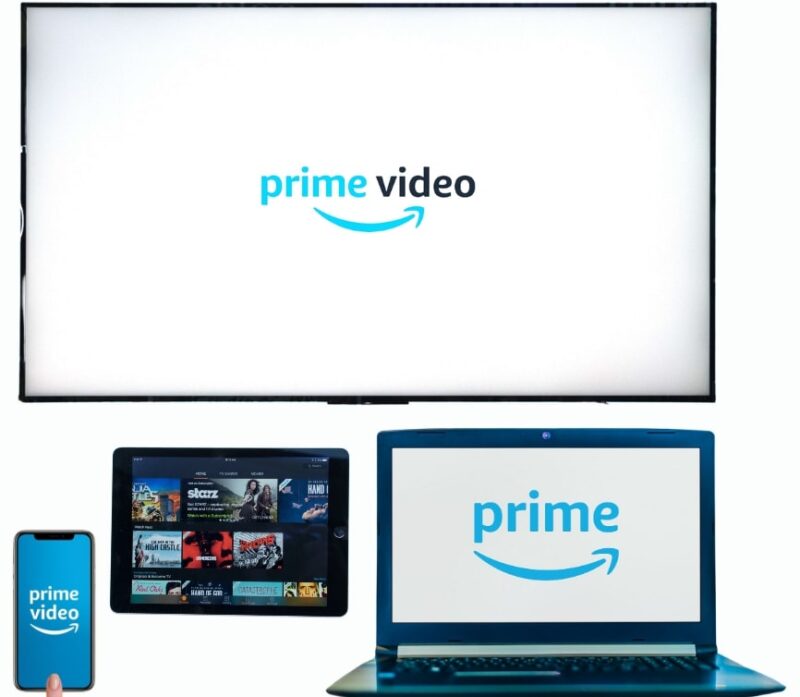
Understanding Amazon Prime Video’s Device Streaming Limits
Amazon Prime Video implements specific rules governing how many users can stream content from a single account concurrently. These rules are designed to balance user convenience with content rights, infrastructure load, and business models. Understanding these limitations is the first step toward a seamless multi-device streaming experience.
The Core Rule: Simultaneous Streams Explained
At its heart, Amazon Prime Video allows for a limited number of simultaneous streams from a single account. For most titles included with your Prime subscription or purchased/rented from the Prime Video store, you can stream on up to three different devices at the same time. However, there’s a crucial caveat: if you’re attempting to watch the same title on multiple devices, the limit drops to two concurrent streams. This means if you have three family members, two can watch “The Lord of the Rings: The Rings of Power” on separate devices, while the third must choose a different show or movie. This policy reflects a strategic decision to prevent widespread account sharing while still accommodating typical household usage.
Account-Wide Device Registration vs. Active Streaming
It’s important to distinguish between “registered devices” and “active streams.” Your Amazon account can have numerous devices registered to it over time – smart TVs, smartphones, tablets, game consoles, streaming sticks, PCs, etc. Registering a device merely links it to your Amazon account, allowing it to access Prime Video and other Amazon services. There is no hard limit on the number of devices you can register. The restriction applies only to the number of devices actively playing content simultaneously. So, while you might have ten devices registered, only a maximum of three can be streaming at any given moment, and only two if they are all watching the identical title. This technical distinction is vital for understanding error messages and managing your account.
Distinguishing Between Titles: Purchase vs. Included Content
While the 3-device/2-same-title rule largely applies across the board, it’s worth noting that content ownership and access models can sometimes influence the system’s behavior. Content included with a standard Prime subscription, purchased digital copies, or rented titles typically adhere to these limits. Third-party channels subscribed through Prime Video (e.g., HBO Max, Paramount+, Starz) might have their own, potentially stricter, simultaneous stream policies dictated by the channel provider, though they are often managed through the Prime Video interface. While Prime Video generally harmonizes these experiences, in rare cases, specific channel rules might supersede the general Prime Video limits, making it essential to consult the specific channel’s terms if issues arise.
Why These Limits Exist: A Technical and Business Perspective
The existence of simultaneous streaming limits is rooted in both technical necessity and business strategy. From a technical standpoint, managing an unlimited number of concurrent streams per account would place immense strain on Amazon’s content delivery networks (CDNs) and server infrastructure, leading to potential performance degradation for all users. These limits help manage bandwidth allocation and ensure a consistent quality of service. From a business perspective, limits combat widespread unauthorized account sharing, which can erode subscription revenue and infringe upon content licensing agreements with studios and distributors. These agreements often specify user access models, and platform providers like Amazon must adhere to them to maintain their content libraries.
Navigating Simultaneous Streams: What You Need to Know
Effectively managing your Prime Video experience across multiple devices requires more than just knowing the limits; it demands an understanding of how to monitor and control those streams. This section provides actionable insights into navigating the multi-device environment.
Identifying Active Streams on Your Account
Unlike some other streaming services, Prime Video doesn’t offer a readily accessible, real-time dashboard showing exactly which devices are currently streaming. This can make diagnosing “too many streams” errors challenging. However, the system intelligently tracks active playback sessions. When you encounter a limit, Prime Video typically prompts you with an error message, often suggesting that you stop playback on another device. The best way to “identify” active streams is through process of elimination or by simply being aware of who in your household is currently watching. Sometimes, restarting the Prime Video app or the device itself can help reset an inactive stream that the system might still be counting.
Managing Registered Devices: Adding and Removing
Even though there’s no limit on registered devices, it’s good practice to periodically manage the list, especially if you sell or lose a device. To manage your registered devices:
-
Go to the Amazon website.
-
Navigate to “Your Account.”
-
Select “Content & Devices” or “Manage Your Content and Devices.”
-
Click on the “Devices” tab.
-
Here, you’ll see a list of all devices registered to your account. You can de-register old or unused devices. De-registering a device does not affect active streams but can be a good security measure and tidies up your account. It’s particularly useful if you suspect unauthorized access.
Different Profiles, Different Streams? Clarifying Family Usage
Prime Video supports user profiles, allowing different members of a household to have their own watch history, recommendations, and parental controls. However, the use of different profiles does not circumvent the simultaneous streaming limits. All profiles operate under the umbrella of a single Amazon Prime Video account. Therefore, if three different profiles are used to stream content on three different devices, this will still count as three simultaneous streams, hitting the maximum. If two of those profiles attempt to watch the same movie, it will exceed the two-stream limit for identical titles. Profiles are for personalization, not for increasing streaming capacity.
Impact of Downloaded Content on Stream Limits
A useful feature of Prime Video is the ability to download content for offline viewing, particularly beneficial for mobile users or those with intermittent internet access. Crucially, downloaded content does not count towards your simultaneous streaming limits. Once a title is downloaded, it is stored locally on your device and can be watched without an active internet connection or interacting with Amazon’s streaming servers. This provides an excellent workaround for households pushing the limits of simultaneous streams, allowing one or more users to consume content without impacting the active stream count. Be mindful of storage space on your device, as downloaded content can consume significant memory.
Optimizing Your Multi-Device Prime Video Experience
Beyond understanding the rules, there are proactive steps you can take to enhance your Prime Video experience across all your gadgets. Optimization involves selecting the right hardware, ensuring robust connectivity, and leveraging features that cater to multi-user environments.
Choosing the Right Devices for Prime Video
The quality of your Prime Video experience is heavily influenced by the playback device. For optimal viewing, consider devices that support:
-
High Resolution: 4K/UHD TVs, monitors, and compatible streaming devices (Fire TV Stick 4K Max, Apple TV 4K, Roku Ultra) deliver the crispest images.
-
HDR/Dolby Vision: These technologies provide enhanced contrast and a wider color gamut, requiring compatible displays and devices.
-
Dolby Atmos/Surround Sound: For an immersive audio experience, pair your device with a soundbar or home theater system supporting these audio formats.
-
Reliable Performance: Newer devices generally have faster processors and more memory, leading to smoother navigation and quicker loading times for the Prime Video app. Old or underpowered devices can lead to frustrating buffering or sluggish UI performance.

Ensuring Optimal Network Performance for All Streams
Streaming high-quality video, especially 4K content, is bandwidth-intensive. When multiple devices are streaming simultaneously, your home network can quickly become a bottleneck.
-
High-Speed Internet: Ensure your internet service plan offers sufficient bandwidth. For multiple 4K streams, a connection of 100 Mbps or higher is advisable.
-
Robust Wi-Fi Router: A modern Wi-Fi 5 (802.11ac) or Wi-Fi 6 (802.11ax) router can better handle multiple devices and prioritize traffic.
-
Ethernet Connections: Whenever possible, connect stationary streaming devices (Smart TVs, gaming consoles) directly to your router via an Ethernet cable. This provides a more stable and faster connection, freeing up Wi-Fi bandwidth for mobile devices.
-
Reduce Interference: Position your router centrally and away from other electronics that can cause signal interference.
Leveraging User Profiles for Personalized Viewing
As discussed, user profiles don’t expand streaming capacity, but they are invaluable for personalization within a shared account. By setting up individual profiles for each family member:
-
Tailored Recommendations: Each user gets recommendations based on their viewing habits, avoiding clutter from other family members’ preferences.
-
Separate Watch Histories: Makes it easy to pick up where you left off on your own shows.
-
Parental Controls: Crucially, parents can set age restrictions and PIN protection for specific profiles, ensuring children only access appropriate content. This is a vital tech feature for family entertainment management.
The Benefits of 4K/HDR Streaming on Compatible Devices
For those with compatible televisions and devices, 4K resolution combined with High Dynamic Range (HDR) or Dolby Vision offers a significantly enhanced visual experience. Prime Video boasts an expanding library of 4K HDR content. Leveraging these features requires:
-
A 4K/UHD TV with HDR10 or Dolby Vision support.
-
A 4K-capable streaming device (e.g., Fire TV Stick 4K Max, PS5, Xbox Series X, newer smart TV apps).
-
HDMI 2.0a/2.1 cables (if applicable) and compatible ports on your TV and streaming device.
-
A stable, high-speed internet connection to handle the increased data requirements. The visual fidelity improvement is substantial, making the investment in compatible tech worthwhile for cinephiles.
Troubleshooting Common Device-Related Prime Video Issues
Despite careful planning, technical glitches can occur. Knowing how to diagnose and resolve common device-related Prime Video issues can save considerable frustration. This section focuses on the typical problems encountered and their solutions, strictly within the tech domain.
“Too Many Streams” Error Message: Diagnosis and Resolution
This is the most direct consequence of exceeding Prime Video’s simultaneous streaming limits.
-
Diagnosis: The error message explicitly states that too many devices are streaming.
-
Resolution:
-
Identify and Stop: Determine which devices are actively streaming and ask users to stop playback, or manually stop it if you have access.
-
Wait: Give the system a minute or two to register the end of a stream.
-
Restart App/Device: Sometimes, an app might not properly terminate a stream session. Closing and reopening the Prime Video app, or even restarting the device, can clear the lingering session.
-
Log Out/In: As a last resort, logging out of Prime Video on all suspected devices and then logging back in on your desired device can reset the active session count.
-
Device Registration Failures and Solutions
Occasionally, a new device might fail to register or link correctly with your Amazon account.
-
Symptoms: Inability to log in, content not loading, or a specific error message about registration.
-
Solutions:
-
Check Internet Connection: Ensure the device has a stable internet connection.
-
Verify Login Credentials: Double-check your Amazon email and password.
-
Update App/Firmware: Make sure the Prime Video app and the device’s operating system (firmware) are up to date. Outdated software can cause compatibility issues.
-
Restart Device: A simple restart can often resolve temporary glitches.
-
Reinstall App: Uninstalling and reinstalling the Prime Video app can fix corrupted data.
-
Check Amazon Account: Ensure your Amazon account is active and in good standing.
-
Playback Quality and Buffering Across Devices
Poor video quality, pixelation, or constant buffering across devices often points to network or device performance issues.
-
Symptoms: Video resolution drops, frequent pauses, or “loading” spinners.
-
Solutions:
-
Internet Speed Test: Perform a speed test on the affected device (if possible) or near your router. Compare results to Amazon’s recommended speeds (e.g., 25 Mbps for 4K).
-
Reduce Network Congestion: Disconnect other bandwidth-heavy devices on your network.
-
Optimize Wi-Fi: Move closer to the router, minimize obstacles, or switch to a less congested Wi-Fi channel.
-
Clear Cache: On smart devices, clearing the cache of the Prime Video app can sometimes improve performance.
-
Check Device Performance: Ensure the device itself isn’t overloaded with other apps or processes running in the background. Close unnecessary applications.
-
Lower Quality Setting: As a temporary measure, you can manually select a lower video quality setting within the Prime Video app to reduce bandwidth demands.
-
App Crashes and Software Updates
Frequent app crashes or unexpected behavior are usually software-related.
-
Symptoms: The Prime Video app closes unexpectedly, freezes, or fails to launch.
-
Solutions:
-
Update App: Always ensure you have the latest version of the Prime Video app installed. Developers frequently release updates to fix bugs and improve stability.
-
Update Device Firmware: Similarly, keep your device’s operating system or firmware up to date. Compatibility issues between an outdated OS and a new app version can cause crashes.
-
Restart Device: A common fix for many software woes.
-
Clear App Data/Cache: On Android or smart TV platforms, clearing the app’s data and cache can resolve persistent issues by removing corrupted files. Be aware this might log you out.
-
Reinstall App: If all else fails, a clean reinstallation of the app is often effective.
-
The Future of Multi-Device Streaming and Prime Video
The landscape of digital entertainment is constantly evolving, driven by advancements in technology. Prime Video, like its competitors, is continuously adapting to meet changing user expectations and capitalize on emerging tech trends, particularly in the realm of multi-device experiences.
Evolution of Streaming Technology and Device Compatibility
Future developments in streaming technology will likely focus on even greater efficiency and broader compatibility. Expect advancements in video codecs (e.g., AV1 becoming more widespread) that deliver higher quality at lower bitrates, reducing bandwidth requirements and making 4K/8K streaming more accessible across more devices. Device manufacturers will continue to integrate streaming capabilities directly into more appliances, from smart refrigerators to car infotainment systems, further fragmenting and expanding the device ecosystem Prime Video must support. Enhanced adaptive bitrate streaming algorithms will also play a crucial role, allowing for even smoother transitions between quality levels based on real-time network conditions across multiple simultaneous streams.
Personalization and AI in Multi-Device Environments
Artificial intelligence and machine learning are poised to further revolutionize the multi-device streaming experience. AI will not only refine content recommendations but also predict user behavior, dynamically adjust stream quality based on individual device capabilities and network conditions, and even potentially manage stream prioritization within a household network more intelligently. Imagine a system that automatically optimizes bandwidth for the 4K movie on the living room TV while ensuring a stable stream for a tablet in another room, all without manual intervention. Personalization might extend to “smart profiles” that automatically detect a user based on the device they’re using or the time of day, offering a truly seamless, intuitive experience across all screens.
The Role of Cloud Streaming and Edge Computing
The underlying infrastructure for streaming is also evolving. Cloud streaming, where much of the processing and rendering happens in remote data centers, will continue to improve, reducing the processing burden on end-user devices. This enables high-fidelity streaming even on less powerful hardware. Edge computing, which brings data processing closer to the source of data (i.e., closer to the user’s home network), could further reduce latency and improve responsiveness for multi-device streaming, especially for interactive content or live events. These architectural shifts will contribute to more resilient, faster, and higher-quality streaming experiences regardless of the number or type of devices involved.

Amazon’s Strategy in a Fragmented Device Landscape
Amazon’s strategy will undoubtedly continue to focus on ubiquity and integration. By ensuring Prime Video is available and optimized on virtually every internet-connected screen – from its own Fire TV devices to third-party smart TVs, game consoles, and mobile platforms – Amazon aims to make Prime Video the default entertainment hub. This involves continuous investment in app development for diverse operating systems, partnerships with device manufacturers, and potentially exploring new interaction paradigms (e.g., voice control integration with Alexa across devices). The goal is a truly fluid experience where content can follow the user from one screen to the next, adapting seamlessly to the technical capabilities and limitations of each device.
In conclusion, understanding “how many devices Prime Video” allows is more than just knowing a number; it’s about mastering the technological ecosystem that underpins your digital entertainment. By comprehending the limits, optimizing your setup, and knowing how to troubleshoot, you can ensure a professional-grade, uninterrupted, and highly enjoyable streaming experience for everyone in your household, across all their devices. As technology advances, these multi-device capabilities will only become more sophisticated, offering even more seamless and personalized ways to consume your favorite content.
aViewFromTheCave is a participant in the Amazon Services LLC Associates Program, an affiliate advertising program designed to provide a means for sites to earn advertising fees by advertising and linking to Amazon.com. Amazon, the Amazon logo, AmazonSupply, and the AmazonSupply logo are trademarks of Amazon.com, Inc. or its affiliates. As an Amazon Associate we earn affiliate commissions from qualifying purchases.