
In the contemporary digital landscape, the “Subscription Economy” has transformed how we consume media. Paramount+, a powerhouse in the streaming sector, offers a vast library of content ranging from live sports to exclusive cinematic releases. However, as the market becomes increasingly fragmented, many users experience “subscription fatigue.” Managing these digital commitments requires more than just a passing knowledge of app interfaces; it requires an understanding of the software ecosystems that govern our devices.
Whether you are streamlining your digital footprint or shifting your focus to another platform, knowing how to efficiently terminate a service is a fundamental digital literacy skill. This guide provides an exhaustive technical walkthrough on how to cancel Paramount+, navigating the complexities of third-party billing, UI hurdles, and account management protocols.
Navigating the Paramount+ Web Portal: The Direct Approach
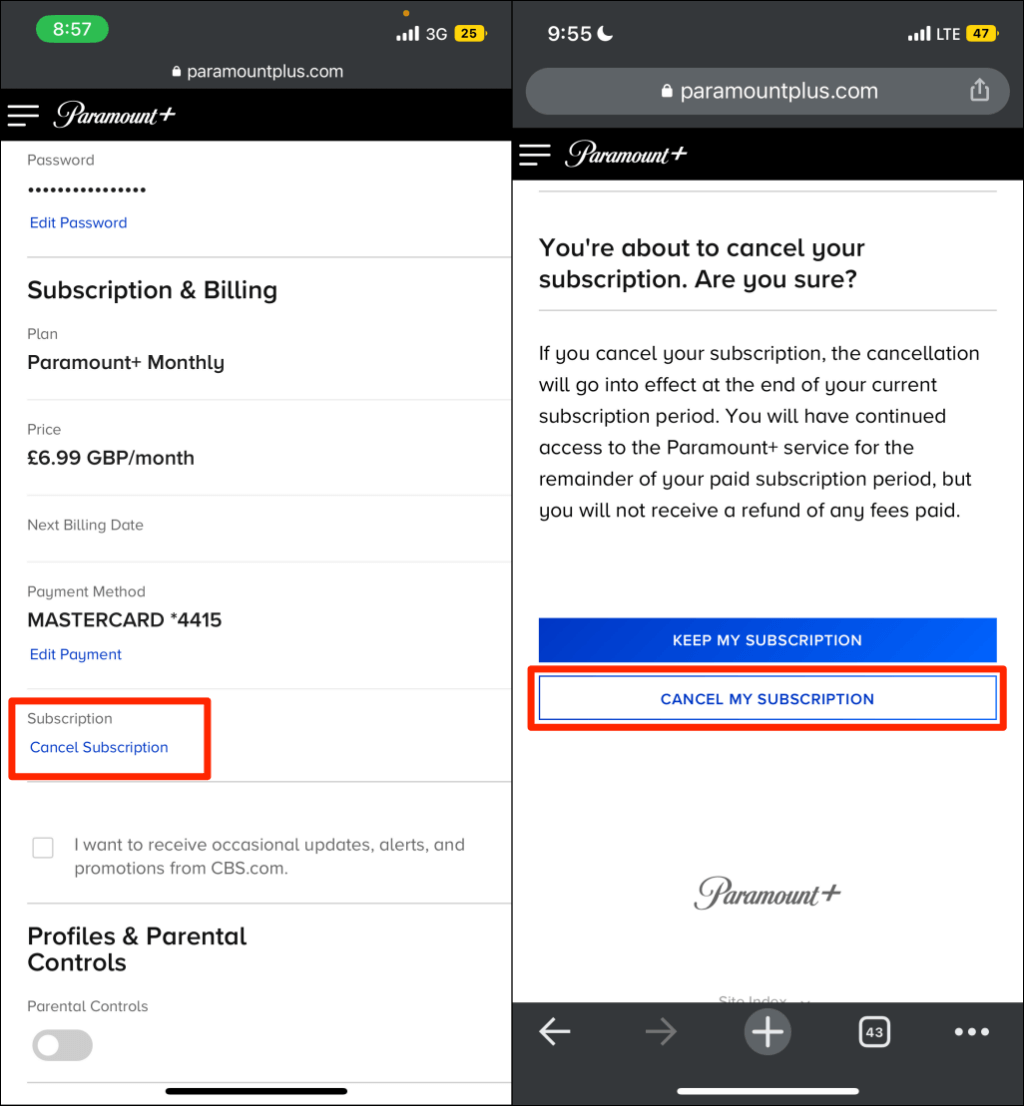
For users who subscribed directly through the Paramount+ website, the cancellation process is handled via their proprietary web architecture. This is often the most straightforward method, as it bypasses the middleman APIs of mobile app stores.
Accessing Account Settings via Browser
To begin the process, navigate to the official Paramount+ website using a desktop or mobile browser. Direct web management is generally more stable than managing subscriptions through a Smart TV interface, which often lacks the full suite of account administrative tools.
Once logged in, hover over your profile icon—a standard UI element in most SaaS (Software as a Service) platforms—and select “Account.” This page serves as the central hub for your subscription metadata, including your billing cycle, plan type, and payment method. To initiate the cancellation, scroll to the “Subscription & Billing” section. Here, you will find the “Cancel Subscription” link.
Understanding the Billing Cycle Synchronization
A critical technical aspect to note is how the software handles “End of Life” (EOL) for your access. Upon clicking cancel, the system doesn’t immediately revoke your digital tokens. Instead, it schedules the account for deactivation at the conclusion of your current billing period.
The platform’s backend architecture is designed to honor the duration of the prepaid period. For example, if your month-long cycle began on the 1st and you cancel on the 10th, the database flags your account to remain “Active” until the 30th. Understanding this synchronization ensures you don’t lose access to content you have already technically purchased.
Third-Party Ecosystems: Managing Subscriptions via Apple, Google, and Amazon
The most common hurdle users face when trying to cancel Paramount+ is the “Billed Through a Third Party” notification. This occurs because the subscription was initiated through an app store API rather than the Paramount+ website directly. In these instances, Paramount+ does not have the administrative authority to terminate your billing; the control lies within the ecosystem of your device.
The iOS and Mac App Store Protocol
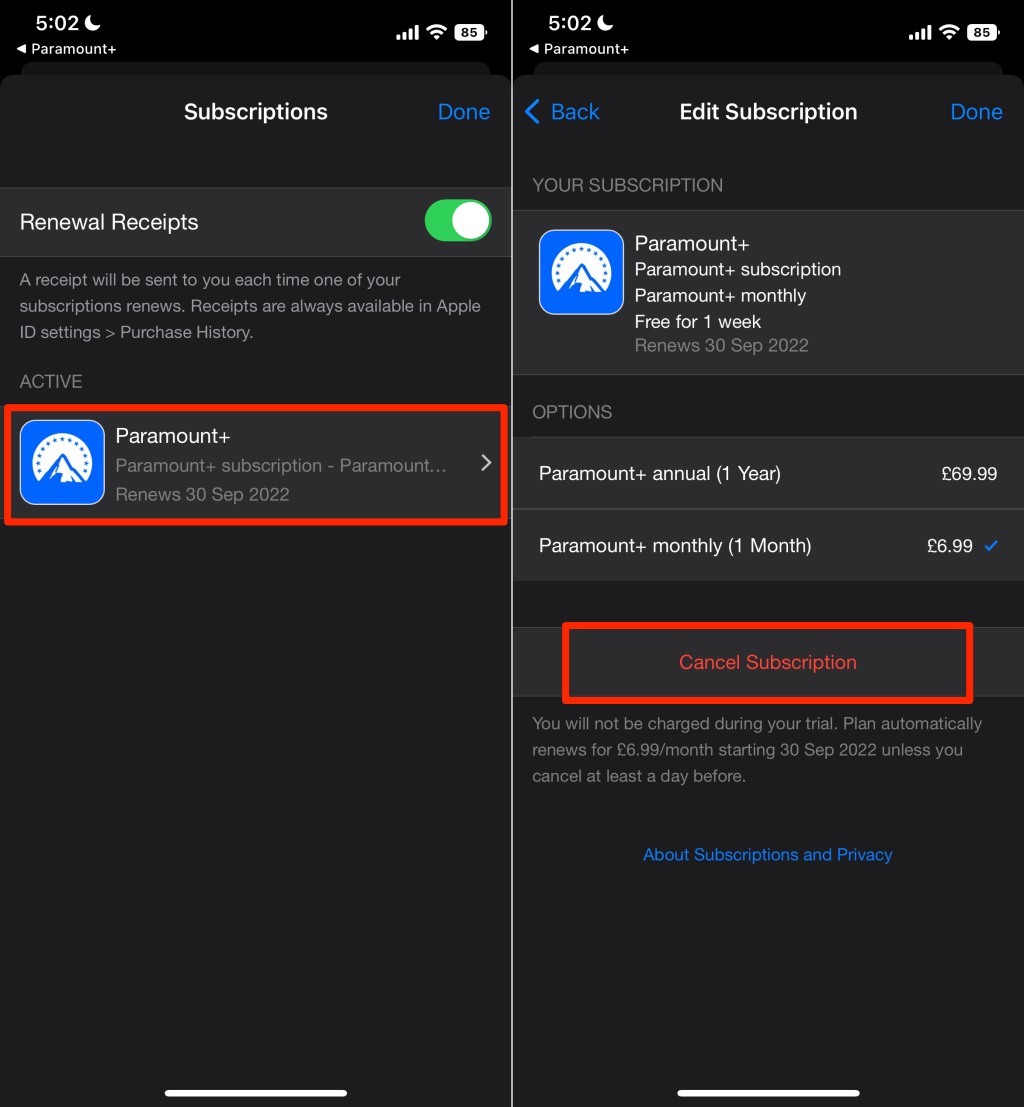
If you subscribed via an iPhone, iPad, or Apple TV, your billing is integrated into the Apple ID ecosystem. To cancel, you must interact with the “Subscriptions” module within the iOS Settings app or the Mac App Store.
- Navigate to Settings: Tap your Name/Apple ID at the top of the menu.
- Select Subscriptions: This queries Apple’s servers for all active recurring billing cycles associated with your biometric or password-authenticated ID.
- Locate Paramount+: Select the app and tap “Cancel Subscription.”
The technical benefit of this system is centralized management. Apple acts as a privacy buffer, meaning Paramount+ never actually sees your credit card data; they only receive a digital confirmation (a “receipt” in developer terms) that the subscription is valid.
Decoupling from the Google Play Store
For Android users, the process is managed through the Google Play Store’s billing API. This is handled similarly to the Apple ecosystem but via the Google account framework.
Within the Google Play Store app, clicking on your profile icon allows you to access “Payments & Subscriptions.” From there, the “Subscriptions” sub-menu displays all active software licenses. Selecting Paramount+ and choosing “Cancel” sends a command to Google’s billing server to cease future recurring payments. It is worth noting that simply uninstalling the app from your Android device does not trigger this API call; the subscription remains active on the server-side until manually revoked.
Amazon Prime Video Channels and Fire TV Management
Many users subscribe to Paramount+ as a “Channel” within the Amazon Prime Video interface. This creates a nested subscription model. To cancel this, you must log into your Amazon account and navigate to “Manage Your Prime Video Channels.”
This is a distinct technical layer from the standalone Paramount+ app. If you try to cancel via the Paramount+ website while being an Amazon Channel subscriber, the UI will redirect you to Amazon’s portal. This highlights the “Interoperability Gap” in modern streaming—where different software platforms must communicate via back-end handshakes to verify user status.
Overcoming Technical Barriers to Cancellation
Sometimes, the cancellation process isn’t a straight line. “Dark patterns”—UX designs intended to make leaving difficult—or genuine technical glitches can impede your progress.
Resolving “Billed Through a Partner” Errors
A frequent point of frustration is the “Partner Billing” loop. This happens when a user signs up through a promotional bundle (like a mobile carrier or an internet service provider). In this scenario, the “Cancel” button is often hidden or replaced with a link to the partner’s site.
Technically, the “source of truth” for your billing resides with the partner’s database. To resolve this, you must log into your service provider’s dashboard (e.g., T-Mobile, Verizon, or Sky) and manage the “Add-ons” or “Digital Services” section. Until the partner’s API sends a “Deactivate” signal to Paramount+, the service will persist.
Clearing Cache and Cookie Issues During the Process
If the “Account” page fails to load or the “Cancel” button is unresponsive, the issue may be client-side. Web browsers store “cookies” and cached data to speed up performance, but this data can become corrupted.
If you encounter a spinning loading icon, try the following technical troubleshooting steps:
- Incognito/Private Mode: This opens a session without existing cookies, forcing the Paramount+ server to send a fresh version of the account page.
- Browser Update: Outdated versions of Chrome, Safari, or Firefox may lack the necessary JavaScript support to render the cancellation modal correctly.
- Disable Ad-Blockers: Some aggressive script-blockers identify “Cancel” pop-ups as unwanted advertisements, inadvertently preventing you from completing the process.
The Future of Subscription Management: Tools and Best Practices
As the number of streaming services continues to grow, manual management is becoming increasingly inefficient. Leveraging technology to manage your technology is the most effective way to maintain control over your digital life.
Using Virtual Cards and Subscription Trackers
One advanced tech strategy for managing services like Paramount+ is the use of virtual credit cards (e.g., Privacy.com). These tools allow you to create a “Merchant Locked” digital card for a specific service.
From a technical standpoint, this puts the power back in your hands. If a cancellation process is overly complex, you can simply “Pause” the virtual card at the source. When the Paramount+ billing engine attempts to ping the card for the monthly fee, the transaction is declined at the API level, effectively forcing a subscription termination due to non-payment without affecting your primary bank account or credit score.
Data Privacy and Deleting Your Account Post-Cancellation
Canceling a subscription and deleting an account are two different technical actions. When you cancel, Paramount+ retains your user profile, viewing history, and metadata to encourage “Win-Back” campaigns (automated emails designed to get you to resubscribe).
If your goal is digital security and data minimization, you should request a full account deletion after the subscription period ends. This requires the platform to scrub your PII (Personally Identifiable Information) from their active databases, adhering to regulations like GDPR or CCPA. This is a vital step for those looking to reduce their “attack surface” in the event of a future data breach.
Conclusion
Canceling Paramount+ is more than just a customer service task; it is an exercise in navigating the modern software ecosystem. By understanding whether your subscription is tethered to a direct web portal, a mobile app store, or a third-party aggregator, you can bypass the common technical roadblocks that lead to frustration.
As we move toward an era of “Total Connectivity,” the ability to manage, audit, and terminate digital subscriptions is a critical skill. Whether you are using a browser, an API-driven app store, or advanced virtual card technology, staying informed about the technical backend of these services ensures that you remain the master of your digital subscriptions—rather than being a passive passenger in the streaming economy.
aViewFromTheCave is a participant in the Amazon Services LLC Associates Program, an affiliate advertising program designed to provide a means for sites to earn advertising fees by advertising and linking to Amazon.com. Amazon, the Amazon logo, AmazonSupply, and the AmazonSupply logo are trademarks of Amazon.com, Inc. or its affiliates. As an Amazon Associate we earn affiliate commissions from qualifying purchases.