
In an era dominated by streaming, the television remains the undisputed king for an immersive viewing experience. While mobile devices and computers offer convenience, the grandeur of a large screen, coupled with superior audio, elevates content consumption to an art form. Among the pantre of streaming giants, Amazon Prime Video stands out, offering a vast library of movies, TV shows, original productions, and live sports. The question “how to get Prime on my TV” is a frequent query, reflecting a desire to harness the full potential of this service on the best possible display. This guide dives deep into the technological pathways and considerations for bringing Amazon Prime Video to your living room screen, ensuring a seamless, high-quality, and engaging entertainment experience.
The Foundation: Understanding Amazon Prime Video’s Technological Ecosystem
Before diving into the “how-to,” it’s crucial to grasp what Amazon Prime Video is and why its integration with various TV technologies is so pivotal. Prime Video isn’t just a collection of content; it’s a sophisticated streaming platform operating within Amazon’s broader Prime subscription service, designed to deliver high-definition and even 4K HDR content across a multitude of devices.
What is Amazon Prime Video? More Than Just Movies
Amazon Prime Video is the streaming component of an Amazon Prime membership. Beyond the free two-day shipping and other perks, Prime Video offers a diverse catalog that spans Hollywood blockbusters, critically acclaimed original series (like The Boys, The Marvelous Mrs. Maisel, and Lord of the Rings: The Rings of Power), documentaries, and a growing selection of live sports and pay-per-view events. The platform also allows users to rent or purchase titles not included with their subscription, effectively making it a comprehensive digital entertainment hub. Technologically, Prime Video leverages robust content delivery networks (CDNs) to ensure minimal buffering and adapts video quality based on your internet speed and device capabilities, aiming for the highest possible resolution up to 4K Ultra HD with HDR (High Dynamic Range) for compatible TVs. This adaptive bitrate streaming is a cornerstone of its technical prowess, ensuring a consistent user experience.
The Imperative of the Big Screen: Why TV is Paramount for Prime Video
While Prime Video is accessible on smartphones, tablets, and computers, the television remains the ideal medium for experiencing its rich visual and auditory content. TVs offer larger screen sizes, often superior display technologies (OLED, QLED, LED), and compatibility with advanced audio systems (soundbars, home theater setups) that can deliver Dolby Atmos or DTS:X immersive sound. Watching a cinematic masterpiece or an epic series on a phone diminishes the creator’s intent; the details, the scale, and the immersive sound design are best appreciated on a television. Furthermore, the communal aspect of TV viewing—gathering with family or friends—is a deeply ingrained cultural practice that streaming services like Prime Video aim to facilitate. The technical challenge, then, becomes bridging the gap between Amazon’s digital content and your home’s central entertainment hub, a challenge met by various hardware and software solutions.
Direct Integration: Leveraging Smart TV Technology
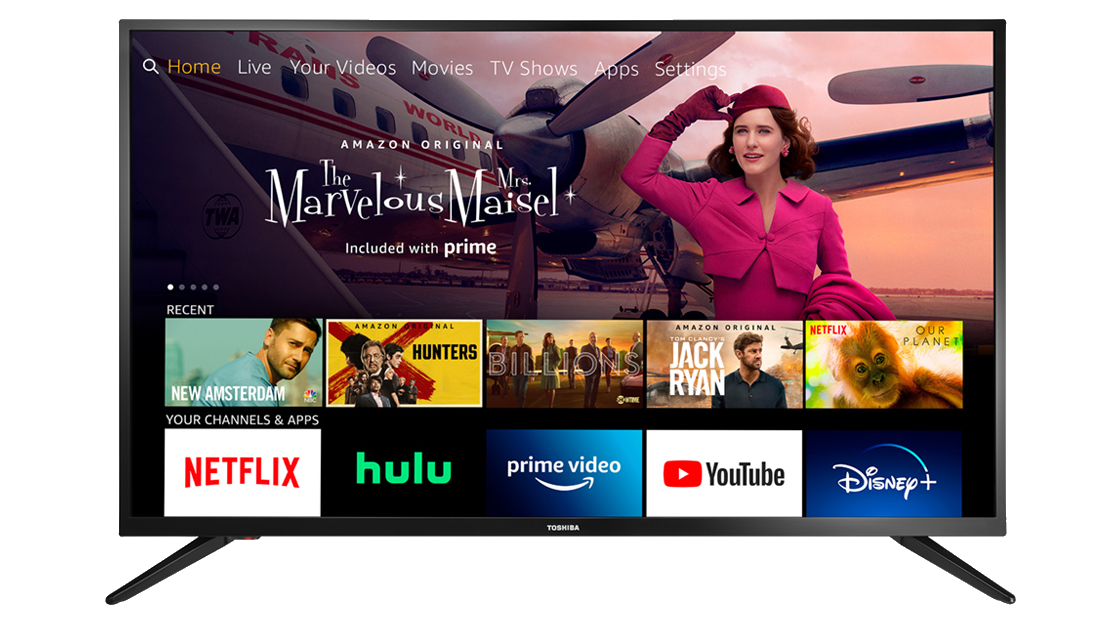
The simplest and most direct path to getting Amazon Prime Video on your television is through a Smart TV. Modern Smart TVs are essentially televisions with integrated computing capabilities, allowing them to connect to the internet and run applications, much like a smartphone or tablet.
Native Smart TV Apps: The Seamless Experience
Most major Smart TV manufacturers—including Samsung, LG, Sony, Panasonic, Vizio, and Hisense—pre-install or offer the Amazon Prime Video app directly through their app stores. This native integration provides the most streamlined user experience.
-
Availability: Check your TV’s app store. If your Smart TV was manufactured in the last 5-7 years, it’s highly probable that the Prime Video app is available. Some TVs, particularly those running specific operating systems like Android TV (Sony, Hisense, TCL) or LG’s webOS and Samsung’s Tizen OS, often feature prominent Prime Video integration directly on their home screens.
-
Interface and Functionality: Native apps are typically optimized for the TV’s display and remote control. They offer full navigation of the Prime Video library, playback controls, account management, and access to all subscription benefits. Often, these apps are designed to leverage the TV’s specific display technologies, such as HDR10+, Dolby Vision, and advanced audio codecs for the best possible quality.
-
Installation: If not pre-installed, navigate to your Smart TV’s app store (often called “Apps,” “Smart Hub,” “LG Content Store,” or “Google Play Store” for Android TVs). Search for “Amazon Prime Video,” select the app, and choose “Install” or “Download.” Once installed, launch the app and sign in with your Amazon account credentials. You might be given a code to enter on a web browser on another device, simplifying the login process.
Ensuring Optimal Performance: Updates and Network Stability
For a smooth Prime Video experience on your Smart TV, two technical aspects are paramount:
-
Software Updates: Smart TV operating systems and individual apps require regular updates to fix bugs, improve performance, add new features, and ensure security. Always keep your TV’s firmware and the Prime Video app updated. Navigate to your TV’s settings menu, look for “Software Update” or “System Update,” and ensure it’s running the latest version. Similarly, check the app store for Prime Video app updates. Outdated software can lead to performance issues, buffering, or even prevent the app from launching.
-
Network Connection: A stable and fast internet connection is critical for streaming high-quality video. For HD streaming, a minimum of 5-10 Mbps is recommended; for 4K Ultra HD, aim for 25 Mbps or higher. While Wi-Fi is convenient, an Ethernet cable connection directly from your router to your TV can provide a more stable and faster connection, reducing latency and buffering, especially in environments with Wi-Fi interference. Check your TV’s network settings to confirm a strong connection or to switch to a wired connection if possible.
Bridging the Gap: External Streaming Devices for Enhanced Access
Not all TVs are “smart,” and even Smart TVs can become outdated, losing app support or struggling with newer codecs. This is where external streaming devices become invaluable, acting as an upgrade path for older TVs or a performance booster for newer ones.
The Powerhouses: Fire TV, Roku, Apple TV, and Chromecast
These dedicated streaming devices are designed specifically to deliver internet-based content to your TV, often with more powerful processors and better software support than many integrated Smart TV platforms.
-
Amazon Fire TV Stick/Cube: Unsurprisingly, Amazon’s own Fire TV line is optimized for Prime Video. These devices run on Amazon’s Fire OS (a customized Android version) and offer seamless integration with the Prime Video library. Fire TV devices come in various tiers, from the budget-friendly Fire TV Stick Lite to the powerful Fire TV Cube, supporting resolutions up to 4K Ultra HD with HDR10+ and Dolby Vision. Setup involves plugging into an HDMI port, connecting to Wi-Fi, and logging into your Amazon account.
-
Roku Devices (Roku Express, Streaming Stick, Ultra): Roku is a platform-agnostic streaming giant, offering a vast array of channels (apps), including Prime Video. Roku devices are known for their simple, intuitive interface and broad compatibility. They range from basic HDMI sticks to high-end boxes with advanced features like Ethernet ports and voice remotes. The Prime Video channel is easily found in the Roku Channel Store.
-
Apple TV (HD, 4K): For users deeply embedded in the Apple ecosystem, the Apple TV offers a premium streaming experience. While it seamlessly integrates with Apple services, it also hosts a robust Prime Video app, often leveraging the device’s powerful A-series chip for smooth 4K HDR playback and Dolby Atmos audio.
-
Google Chromecast (with Google TV) / Google TV Devices: Original Chromecasts required casting from a phone or computer, but newer models like the Chromecast with Google TV feature a full user interface, remote control, and a dedicated Prime Video app, transforming it into a complete streaming device running Google TV (an evolution of Android TV). Other devices running Google TV directly (like certain Sony or TCL TVs) also offer this integrated experience.

Step-by-Step Setup: Bringing Your Device to Life
The setup process for most streaming devices follows a similar pattern:
-
Physical Connection: Plug the streaming device into an available HDMI port on your TV. For some devices, you’ll also need to connect a USB power cable, either to a USB port on your TV or a wall adapter.
-
Power On & Input Selection: Turn on your TV and use its remote to switch the input (source) to the HDMI port where your streaming device is connected.
-
Initial Setup Wizard: The device will guide you through a setup wizard. This typically involves:
-
Language Selection: Choose your preferred language.
-
Wi-Fi Connection: Select your home Wi-Fi network and enter the password. A strong, stable Wi-Fi signal is crucial here.
-
Account Login: You’ll be prompted to log in to your Amazon account (for Fire TV) or create/log in to an account for the respective platform (Roku, Google, Apple).
-
App Installation: Navigate to the device’s app store or channel store, search for “Amazon Prime Video,” and install it.
-
-
Sign In to Prime Video: Launch the Prime Video app. You’ll be asked to sign in using your Amazon account details. Often, you’ll receive a code to enter at amazon.com/mytv on a computer or mobile device, which simplifies the process by avoiding on-screen typing.
Once logged in, your Prime Video library will be accessible, ready for streaming.
Choosing the Right Device: Factors to Consider
Selecting the optimal streaming device involves weighing several technical and user experience factors:
-
Ecosystem Preference: If you’re heavily invested in Amazon’s ecosystem (Alexa, smart home devices), a Fire TV device offers the most cohesive experience. Similarly, Apple users might prefer Apple TV.
-
Resolution and HDR Support: Ensure the device supports the highest resolution your TV can handle (e.g., 4K Ultra HD) and relevant HDR formats (HDR10, HDR10+, Dolby Vision).
-
Audio Technologies: Look for support for advanced audio formats like Dolby Atmos if you have a compatible sound system.
-
User Interface and Remote: Evaluate which interface feels most intuitive. Some devices offer voice control, app shortcuts, or customizable home screens.
-
Connectivity: Consider Ethernet ports for wired connections if Wi-Fi is unreliable.
-
Budget: Streaming devices range from under $30 to over $150, offering options for every price point without compromising core functionality.
Modern Connectivity: Casting and Mirroring Technologies
For situations where a native app or dedicated streaming device isn’t the primary choice, or as a convenient secondary option, casting and mirroring technologies provide flexible ways to project Prime Video content from a smaller screen to your TV.
Seamless Casting with Chromecast and Built-in Chromecast (Google Cast)
Casting is a highly efficient method where your mobile device (smartphone or tablet) or computer acts as a remote control, sending instructions to a compatible TV or device (like a Chromecast dongle or Smart TV with built-in Chromecast).
-
How it Works: When you “cast” from the Prime Video app on your phone to a Chromecast, the Chromecast device directly streams the content from the internet, rather than your phone streaming it and then sending it to the TV. This saves battery on your phone and allows you to use your phone for other tasks without interrupting the stream.
-
Steps:
-
Ensure your mobile device and Chromecast/TV are on the same Wi-Fi network.
-
Open the Amazon Prime Video app on your smartphone or tablet.
-
Start playing a video.
-
Look for the “Cast” icon (a rectangle with a Wi-Fi symbol in the bottom left corner), usually in the top right of the video player.
-
Tap the Cast icon and select your Chromecast device or compatible Smart TV from the list.
-
The video will begin playing on your TV, and your phone will transform into a remote for playback controls.
-
AirPlay for Apple Ecosystem Users
AirPlay is Apple’s proprietary wireless streaming protocol, allowing users to cast audio and video from Apple devices (iPhone, iPad, Mac) to AirPlay-compatible TVs or Apple TV devices.
-
Compatibility: Many newer Smart TVs (Samsung, LG, Sony, Vizio) now include AirPlay 2 support, making it a viable option for iPhone and iPad users.
-
Steps:
-
Ensure your Apple device and AirPlay-compatible TV are on the same Wi-Fi network.
-
Open the Prime Video app on your iPhone or iPad and start playing a video.
-
Tap the AirPlay icon (a rectangle with an upward-pointing triangle) within the video player or from the Control Center.
-
Select your AirPlay-compatible TV from the list.
-
The video will stream to your TV.
-
Screen Mirroring: A Universal but Less Optimized Approach
Screen mirroring duplicates your device’s entire screen onto your TV. While universal, it’s generally less optimized for video streaming than casting or AirPlay.
-
Functionality: Your TV essentially becomes a larger display for whatever is on your phone or computer screen.
-
Limitations: This method is more prone to latency, lower resolution, and can drain your mobile device’s battery quickly, as the device is actively rendering and transmitting the video. It’s best used for presentations or showing photos, rather than extended video streaming.
-
Implementation: Android devices often have a “Smart View,” “Cast,” or “Screen Mirroring” option in their quick settings panel. PCs can connect wirelessly to compatible TVs using Miracast or directly via an HDMI cable. While it works for Prime Video, casting directly from the app is almost always a superior experience.
Optimizing Your Prime Video Streaming Experience
Getting Prime Video on your TV is just the first step. To truly enjoy the wealth of content, optimizing your setup for the best possible technical performance is crucial.
Network Configuration: The Backbone of High-Quality Streaming
Your internet connection is the single most critical factor influencing streaming quality.
-
Bandwidth Requirements: As mentioned, 25 Mbps is a good baseline for 4K streaming. However, if multiple devices are using your network simultaneously, you’ll need more. Consider upgrading your internet plan if you frequently experience buffering.
-
Router Placement and Quality: Position your Wi-Fi router centrally and away from obstructions. An outdated router can bottleneck even a fast internet plan. Upgrading to a Wi-Fi 6 or Wi-Fi 6E router can significantly improve wireless performance and reliability, especially in dense network environments.
-
Wired vs. Wireless: Whenever possible, use an Ethernet cable to connect your TV or streaming device directly to your router. This eliminates wireless interference and provides the most stable and fastest connection. If wireless is necessary, ensure your device supports 5GHz Wi-Fi bands for faster speeds and less congestion than 2.4GHz.
-
Quality of Service (QoS): Some routers offer QoS settings, allowing you to prioritize traffic for streaming devices, ensuring they get sufficient bandwidth even when other devices are active.
Display and Audio Settings: Unlocking Visual and Auditory Fidelity
Modern TVs and streaming devices boast impressive capabilities, but they need to be correctly configured.
-
Resolution and Refresh Rate: Ensure your TV and streaming device are set to output the highest resolution supported by your TV (e.g., 3840×2160 for 4K). Check your streaming device’s display settings (e.g., “Display & Sound” on Fire TV, “Display Type” on Roku) and your TV’s picture settings. Also, verify that the refresh rate (typically 60Hz) is appropriate.
-
High Dynamic Range (HDR): If your TV supports HDR (HDR10, HDR10+, Dolby Vision), ensure it’s enabled. This often requires activating an “Enhanced HDMI” or “UHD Color” setting on the TV for the specific HDMI port your streaming device is connected to. Prime Video offers a substantial amount of HDR content, which drastically improves contrast and color vibrance.
-
Audio Output: Connect your TV or streaming device to a soundbar or AV receiver via HDMI ARC/eARC for the best audio experience. Confirm that your device and sound system are configured to output and receive advanced audio formats like Dolby Digital Plus, Dolby Atmos, or DTS-HD Master Audio, depending on the content and your system’s capabilities. Check the audio settings on your streaming device and your TV.

App and Device Maintenance: The Digital Hygiene
Just like any piece of technology, ongoing maintenance is vital.
-
Regular Updates: Consistently check for and install updates for your TV’s firmware, streaming device’s operating system, and the Prime Video app itself. These updates often bring performance improvements, security patches, and support for new features or codecs.
-
Cache Clearing and Reinstallation: If an app starts misbehaving (crashing, slow performance, buffering), try clearing its cache data from your TV or streaming device’s settings. If the problem persists, uninstalling and reinstalling the Prime Video app can resolve corrupted data issues.
-
Device Reboots: A simple restart can fix many transient technical glitches. Periodically reboot your streaming device, TV, and even your router and modem.
Getting Amazon Prime Video onto your television is a straightforward process, thanks to advancements in Smart TV technology, dedicated streaming hardware, and wireless casting protocols. By understanding the underlying technologies and meticulously optimizing your setup, you can transform your living room into a premium cinematic hub, ready to deliver Amazon’s vast entertainment catalog with unparalleled visual and auditory fidelity. Whether you choose a native Smart TV app, a powerful streaming stick, or the convenience of casting, a world of content awaits on the big screen.
aViewFromTheCave is a participant in the Amazon Services LLC Associates Program, an affiliate advertising program designed to provide a means for sites to earn advertising fees by advertising and linking to Amazon.com. Amazon, the Amazon logo, AmazonSupply, and the AmazonSupply logo are trademarks of Amazon.com, Inc. or its affiliates. As an Amazon Associate we earn affiliate commissions from qualifying purchases.