
In the ecosystem of modern software development, Git stands as the definitive standard for version control. Whether you are a solo developer working on a personal project or part of a global enterprise team, your “username” is the primary identifier that links your contributions to your identity. However, for many beginners and even intermediate developers, the question “What is my Git username?” can be surprisingly nuanced. This is because “Git” is a distributed version control system that operates locally on your machine, while platforms like GitHub, GitLab, and Bitbucket are hosting services that manage your remote repositories.
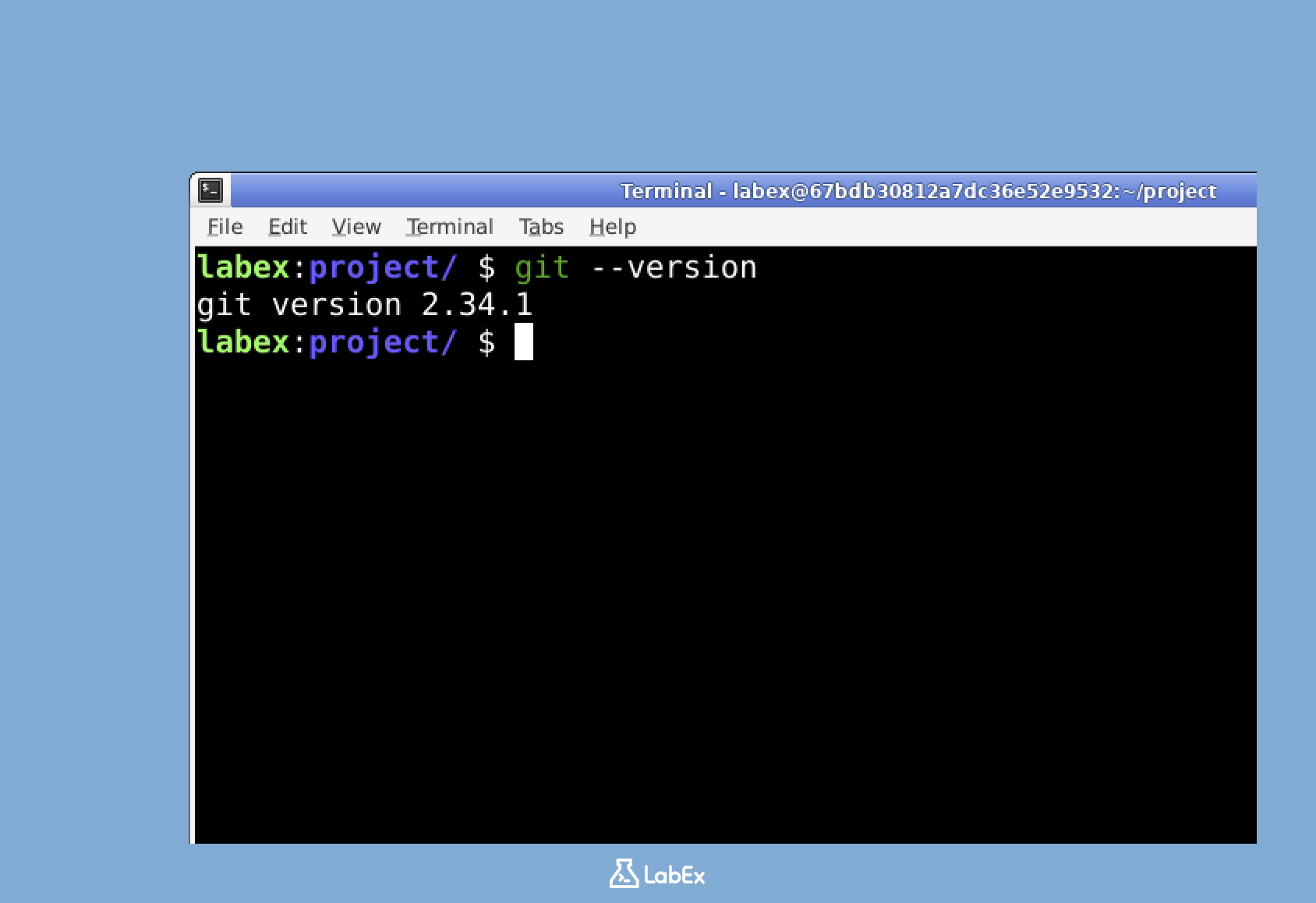
Understanding the distinction between your local Git configuration and your remote hosting account is the first step in mastering your professional identity as a developer. This guide provides a deep dive into identifying, configuring, and troubleshooting your Git username across various environments.
Distinguishing Between Local Git Config and Hosting Platform Usernames
Before diving into commands and settings, it is essential to clarify what “username” refers to in different contexts. A common point of confusion arises from the fact that you might use one name in your code commits and a different name to log into a website like GitHub.
The Local Git Identity
When you install Git on your operating system, it functions as a standalone tool. To attribute changes to a specific author, Git relies on a local configuration file (usually .gitconfig). This local username is what appears in the “Author” field when someone runs the git log command. It is strictly for metadata and does not necessarily need to match your legal name or your online handle, although consistency is highly recommended for professional reasons.
The Remote Hosting Username
This is your “handle” or “login” for a service provider. For instance, if your profile is located at github.com/dev-expert, then dev-expert is your hosting username. This username is used for authentication, URL structures, and @-mentions in pull requests. While your local Git username identifies who wrote the code, your hosting username identifies who pushed the code to the server and who owns the account.
Why Synchronization Matters
While Git technically allows these two names to be different, mismatched identities can lead to “unattributed commits.” On platforms like GitHub, if your local Git email and name do not match your account settings, your contributions may not be linked to your profile, resulting in a loss of those coveted green squares on your contribution graph.
How to Find Your Git Username Using the Command Line
The most direct way to find your Git username is through the terminal or command prompt. Git stores configuration data at three different levels: System, Global, and Local. Knowing which command to use depends on whether you want to see your universal settings or the settings specific to a single project.
Checking Your Global Username
The global configuration applies to all repositories on your computer unless overridden by a specific project. This is the most common place where Git usernames are stored. To view it, open your terminal and type:
git config --global user.name
This command will return the string currently assigned to your global profile. If the command returns nothing, it means you have not yet configured a global username.
Checking Your Local (Repository-Specific) Username
Sometimes, you might use a different identity for specific projects—for example, using your full legal name for work repositories and a pseudonym for open-source experiments. To see the username for the specific repository you are currently in, use:
git config user.name
By omitting the --global flag, Git looks first at the .git/config file within your current folder. If no local name is set, it will default to the global setting.
Viewing All Configuration Settings
If you want to see a comprehensive list of all configurations, including your username, email, and alias settings, run:
git config --list
This command is particularly useful for troubleshooting because it shows the hierarchy of settings. If user.name appears twice, the value appearing last in the list is the one currently being applied to your commits.
Locating Your Username on GitHub, GitLab, and Bitbucket
If you are looking for the username associated with your online account to share your profile or configure a remote URL, you will need to navigate the web interface of your chosen hosting provider.

Finding Your Username on GitHub
GitHub is the most popular host for Git repositories. Your username is visible in several places:
- The URL: Navigate to your profile page; your username follows the domain (e.g.,
github.com/your-username). - The Dashboard: Once logged in, click your profile icon in the top-right corner. Your username is displayed in bold at the top of the dropdown menu, preceded by the “Signed in as” text.
- Settings: In the “Public profile” section of your settings, you can see your “Username,” which is distinct from your “Name” (your display name).
Finding Your Username on GitLab
GitLab follows a similar pattern but includes “Groups” which can sometimes complicate identification.
- User Icon: Click on your avatar in the top-left or top-right (depending on your version/UI). Your “@username” will be visible directly under your display name.
- Profile Settings: Under “User Settings” > “Account,” you will see your “Username.” This is the unique slug used in your profile URL.
Finding Your Username on Bitbucket
Bitbucket, often used in corporate environments, distinguishes between your “Full Name” and your “Bitbucket Username.”
- Personal Settings: Click on the “Avatar” icon > “Personal settings.”
- Account Details: Your username is listed under the “Account settings” menu. Note that Bitbucket also uses a “UUID” for internal identification, but the username is what you will use for Git operations.
Updating Your Git Username and Handling Authentication Errors
Once you have identified your username, you may find that it is incorrect, outdated, or causing authentication failures. Updating this information requires a mix of configuration commands and credential management.
How to Change Your Local Git Username
To update the name that appears in your future commits, use the git config command with the new value in quotes:
git config --global user.name "John Doe"
If you need to change the name for just one project, navigate to that directory and run:
git config user.name "John Work-Identity"
Resolving Authentication Issues
Finding your username is often the first step in solving a “Permission Denied” error. When you push code to a remote server, Git uses a credential helper to remember your username and password (or token).
On Windows, these are stored in the Windows Credential Manager. If you change your GitHub username but the Credential Manager still has your old one saved, your “push” requests will fail. To fix this, search for “Credential Manager” in your Start menu, go to “Windows Credentials,” find the entry for git:https://github.com, and update it with your new username and Personal Access Token (PAT).
On macOS, these credentials are kept in the Keychain Access. Searching for “github.com” or “git” in the Keychain and deleting the old entry will force Git to ask for your new username and credentials the next time you interact with the server.
Amending Past Commits
If you realized your username was wrong after making several commits, you can fix the most recent one using:
git commit --amend --author="New Name <email@example.com>"
For a deeper fix involving an entire branch history, tools like git-filter-repo or scripts are required, though these should be used with caution as they rewrite history and can disrupt collaborators.
The Strategic Importance of Your Git Identity in Modern DevOps
Your Git username is more than just a label; it is a component of your professional brand and a vital link in the security chain of a software project.
Professional Branding and Visibility
In the tech industry, your GitHub or GitLab profile often serves as a living resume. Consistent use of a professional username across your local config and your remote profile ensures that your work is correctly attributed. When recruiters or open-source maintainers look at a project’s history, they should be able to click on your name in the commit log and be directed to a profile that showcases your skills and history.
Security and Auditing
In enterprise environments, knowing “who did what” is a matter of security. Audit logs rely on Git usernames to track changes to sensitive infrastructure-as-code or core business logic. If a security vulnerability is introduced, the Git username is the first point of reference for the incident response team. Using a clear, identifiable username—rather than a generic one like “Admin” or “User”—is a best practice in any professional DevOps pipeline.

Managing Multiple Identities
Many developers manage both a personal and a professional Git identity. To prevent accidentally committing to a work repo with a personal username (or vice versa), it is helpful to use conditional includes in your .gitconfig. You can configure Git to automatically switch your username based on the directory you are working in. For example:
[includeIf "gitdir:~/work/"]
    path = ~/.gitconfig-work
[includeIf "gitdir:~/personal/"]
    path = ~/.gitconfig-personal
This level of organization ensures that your “Git username” is always appropriate for the context of your work, maintaining privacy for personal projects and compliance for corporate ones. By understanding the mechanics of how Git handles your identity, you move from simply using a tool to mastering the infrastructure of collaborative development.
aViewFromTheCave is a participant in the Amazon Services LLC Associates Program, an affiliate advertising program designed to provide a means for sites to earn advertising fees by advertising and linking to Amazon.com. Amazon, the Amazon logo, AmazonSupply, and the AmazonSupply logo are trademarks of Amazon.com, Inc. or its affiliates. As an Amazon Associate we earn affiliate commissions from qualifying purchases.