
In the modern computing landscape, knowing the specific version of your operating system is more than just a matter of curiosity; it is a fundamental requirement for maintaining digital security, ensuring software compatibility, and optimizing hardware performance. Microsoft’s evolution of the Windows ecosystem has shifted from monolithic releases once every few years to a “Windows as a Service” model. This means that two computers running “Windows 11” might actually be operating on vastly different feature sets and security protocols depending on their specific build numbers and version iterations.
Whether you are a casual user looking to install a new application, a power user troubleshooting a driver conflict, or an IT professional managing a fleet of devices, identifying your exact Windows version is the first step in any technical journey. This guide provides an in-depth look at the methods for identifying your OS, understanding the data you find, and recognizing why these details are critical to your digital life.
Quick Methods to Check Your Windows Version
The Windows interface provides several avenues to access system information, ranging from simple graphical dialog boxes to more detailed system menus. Depending on your comfort level with the interface, you can use any of the following methods to pinpoint your current environment.
The “Winver” Command
The fastest and most universal way to check your version across Windows 10 and 11 is the “winver” command. This small utility bypasses the often-changing layout of the Settings menu to provide a concise summary of your OS.
- Press the Windows Key + R on your keyboard to open the Run dialog box.
- Type
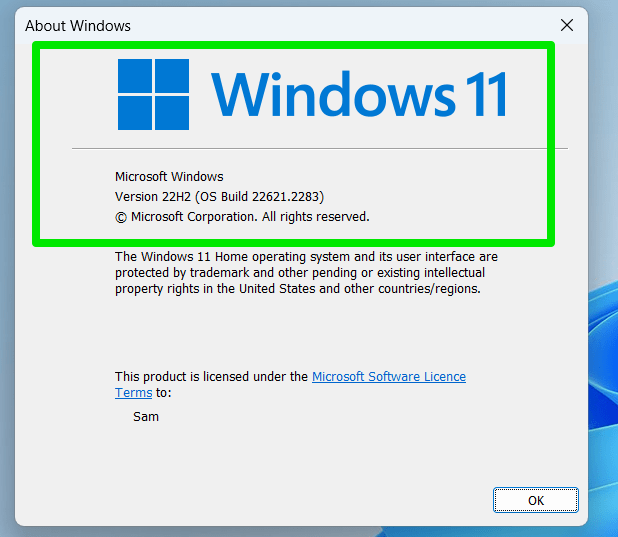
winverinto the text box and press Enter. - A small window titled “About Windows” will appear.
This dialog displays the major version (e.g., Windows 11), the version number (e.g., 23H2), and the OS Build (e.g., 22631.3007). This is often the most efficient way to verify your status when speaking with technical support.
The Settings Menu
For those who prefer a more visual navigation, the Settings app offers a comprehensive look at both software and hardware specifications.
- Click the Start button and select the Settings (gear icon).
- Navigate to System and scroll down to the About section.
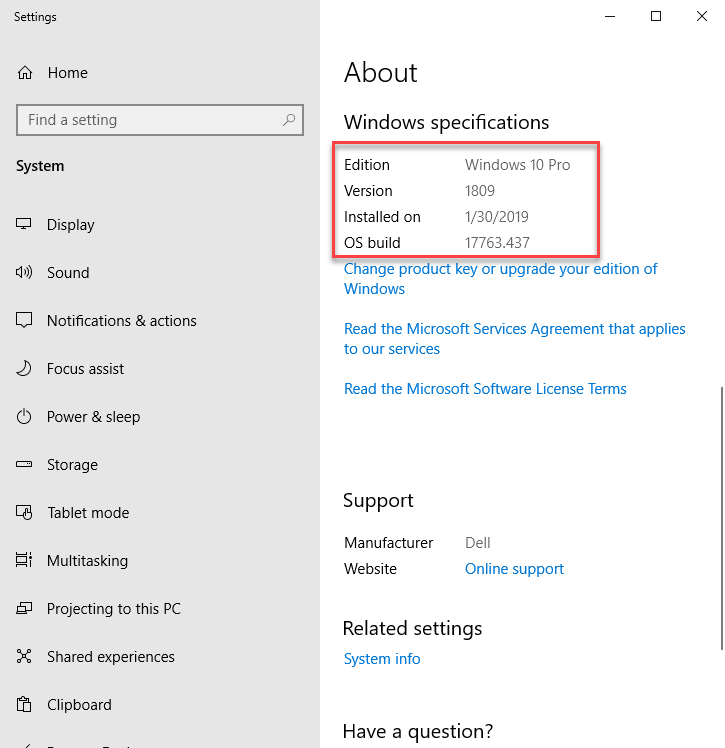
- Under the Windows specifications header, you will find your Edition, Version, Installed date, and OS Build.
This section is particularly useful because it also lists your “Experience pack,” which indicates which set of shell features and interface updates are currently active on your machine.
System Information (msinfo32)
If you require a deep dive into the architecture of your OS, the System Information tool is the gold standard.
- Type
System Informationinto the Windows search bar and press Enter. - The “System Summary” screen will immediately show the OS Name, Version, and Other OS Description.
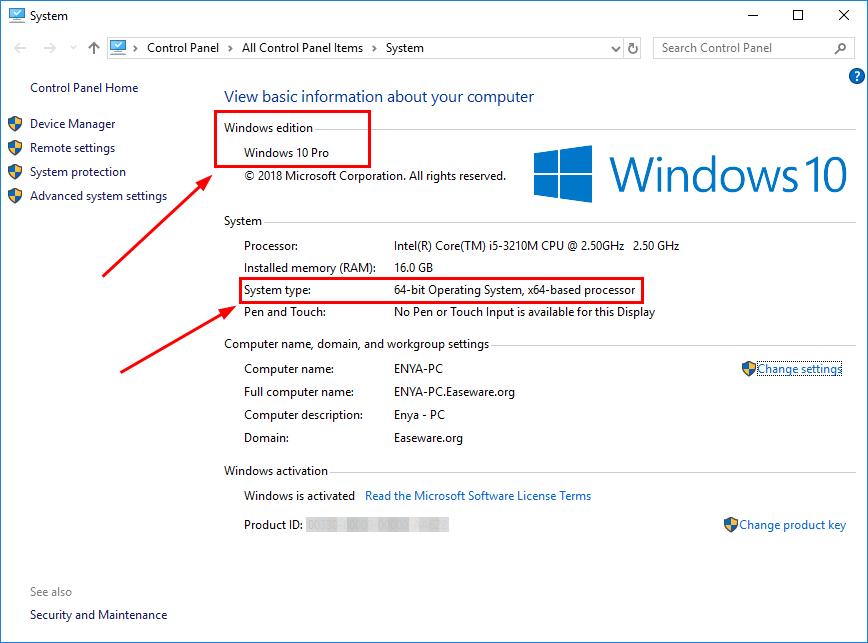
- It also identifies whether you are running a 64-bit (x64) or 32-bit (x86) version of the software, which is vital for choosing the correct installers for professional software like Adobe Creative Cloud or CAD tools.
Decoding the Information: Edition vs. Version vs. Build
When you find the information using the methods above, you will see several different labels. Understanding the distinction between these terms is essential for troubleshooting and software licensing.
Windows Edition
The “Edition” refers to the specific product line of Windows you are using. The most common editions include:
- Windows Home: Designed for consumer use, featuring standard security and media features.
- Windows Pro: Includes advanced features like BitLocker encryption, Remote Desktop capabilities, and Hyper-V for virtualization.
- Windows Enterprise: Tailored for large organizations with advanced management, deployment, and security features.
- Windows Education: A variant of Enterprise designed specifically for school environments.
Knowing your edition is critical because certain features (like Joining a Domain or using Group Policy Editor) are strictly unavailable in the Home edition.
Version Number
The “Version” number identifies the major semi-annual update your system has installed. For several years, Microsoft used a “YYMM” format (like 1909 or 2004), but they have recently transitioned to a “Year/Half” format (like 22H2 or 23H2).
- H1 refers to updates released in the first half of the year.
- H2 refers to updates released in the second half of the year.
If your version number is significantly older than the current release (e.g., you are still on 21H1 in 2024), your system may no longer be receiving critical security updates.
OS Build
The “Build” number is the most granular piece of data. It changes almost every time a quality update or security patch is applied. For example, while two users might both be on version 23H2, one might be on build 22631.1000 and another on 22631.3000. The digits after the decimal point usually indicate the most recent cumulative update, which contains the latest bug fixes.
The Critical Link Between OS Version and Digital Security
The version of Windows you run is the primary factor in your computer’s vulnerability to external threats. In the tech world, “outdated” is synonymous with “exposed.”
The Lifecycle of Support
Every version of Windows has a fixed support lifecycle. Microsoft typically supports a specific version of Windows 10 or 11 for 18 to 36 months, depending on the edition (Home vs. Enterprise). Once a version reaches its “End of Service” date, it no longer receives security patches. If you find that your version is outdated, you are at risk of “Zero-Day” exploits—vulnerabilities that hackers can use because the developer is no longer patching the hole.
Feature Updates vs. Quality Updates
Identifying your version helps you distinguish between feature updates and quality updates. Quality updates (or “Patch Tuesday” updates) focus on security and reliability. Feature updates, which change your version number (e.g., from 22H2 to 23H2), introduce new functionalities, UI changes, and underlying system improvements. Keeping track of these ensures you are not missing out on advancements like AI-driven search, enhanced taskbar functionality, or better battery management for laptops.
Hardware Compatibility and Drivers
Hardware manufacturers like NVIDIA, Intel, and AMD release drivers that are often optimized for specific builds of Windows. If you are experiencing system crashes or poor gaming performance, checking your Windows version might reveal that your OS is too old for the latest driver, or conversely, that a very new Windows update has introduced a conflict with an older driver.
Specialized Methods for Power Users and Remote Management
For IT professionals and power users who need to identify Windows versions across multiple machines or via script-based automation, the standard graphical user interface is often insufficient.
Using Command Prompt and PowerShell
The Command Prompt and PowerShell offer high-speed ways to pull system data without navigating menus.
- Command Prompt: Open CMD and type
systeminfo. This command scans the local machine and returns a comprehensive list of data, including the original install date and the hotfixes that have been applied. - PowerShell: Use the command
Get-ComputerInfo. This provides a structured object containing the Windows version, build number, and even the BIOS version, which can be easily exported to a CSV file for auditing.
Registry Editor
For those who need to programmatically check versioning, the Registry stores this data in a persistent location. Navigating to HKEY_LOCAL_MACHINESOFTWAREMicrosoftWindows NTCurrentVersion reveals keys like DisplayVersion, CurrentBuild, and EditionID. While manual editing of the registry is discouraged for casual users, knowing where this data lives is vital for software developers who need their apps to check for system compatibility during installation.
Navigating the Evolution: From Windows 10 to Windows 11
The shift from Windows 10 to Windows 11 introduced a significant change in how versions are managed and what hardware is required. Knowing which “Windows” you are on is now dictated largely by your hardware’s capabilities.
The TPM 2.0 and CPU Requirements
Many users find themselves stuck on the final versions of Windows 10 because their hardware does not meet the strict requirements for Windows 11, specifically the Trusted Platform Module (TPM) 2.0 requirement and supported CPU lists. If you check your version and see Windows 10, it is important to check the “PC Health Check” app provided by Microsoft to see if your machine is eligible for an upgrade.
Windows 10 End of Life
As of the current tech roadmap, Windows 10 is scheduled to reach the end of its support lifecycle in October 2025. For users currently on any version of Windows 10, identifying the specific version is the first step in planning a migration or a hardware refresh. Staying on Windows 10 beyond this date without an Extended Security Updates (ESU) plan could leave personal and corporate data highly vulnerable.
The Role of AI and “Moment” Updates
With Windows 11, Microsoft introduced “Moment” updates—smaller, frequent feature drops that occur outside the major annual version change. This makes the OS Build number more important than ever. Features like Windows Copilot or the redesigned File Explorer might appear mid-year through these “Moments,” meaning two users on the same version number might have different features depending on their build updates.
Final Thoughts on OS Maintenance
Identifying “what version of Windows am I on” is not a one-time task but a part of regular digital hygiene. In an era where cyber threats are increasingly sophisticated and software dependencies are complex, the build number of your operating system is a vital piece of information. By using tools like winver, the Settings menu, or PowerShell, you empower yourself to troubleshoot effectively, secure your data, and ensure that your hardware is performing at its peak. As Microsoft continues to integrate AI and cloud-based features into the Windows shell, staying informed about your system’s version will remain the cornerstone of a productive and secure computing experience.