
In the rapidly evolving landscape of personal computing, the synergy between hardware and software is the foundation of a seamless user experience. At the heart of this synergy lies a critical, yet often overlooked, component: the device driver. Whether you are a creative professional pushing your GPU to its limits, a gamer seeking the highest frame rates, or a remote worker relying on a stable network connection, understanding how to effectively manage and update your device drivers is essential. This guide provides a comprehensive deep dive into the technicalities of driver management, ensuring your system remains stable, secure, and performant.

Understanding the Role of Device Drivers in Modern Computing
Before diving into the “how,” it is imperative to understand the “what” and “why.” Device drivers are specialized software components that act as a bridge between the operating system (OS) and the physical hardware of a computer. Without drivers, the OS cannot communicate instructions to components like your printer, graphics card, or Wi-Fi adapter.
What is a Device Driver?
Technically, a driver is a translator. Every piece of hardware—from the smallest USB peripheral to the most complex motherboard chipset—speaks its own technical language. The operating system, such as Windows 11 or macOS, speaks a different language. The device driver receives high-level commands from the OS and translates them into low-level instructions that the hardware can execute.
The Silent Translators: Communication Between Hardware and OS
When you click “Print” on a document, the application sends the request to the OS. The OS, in turn, hands that request to the printer driver. The driver formats the data into a code the printer understands, specifying paper size, ink density, and resolution. This interaction happens in milliseconds. When drivers are outdated, these instructions can become garbled, leading to crashes, “Blue Screen of Death” (BSOD) errors, or hardware malfunctions.
Why Keeping Drivers Current is Non-Negotiable
Updating drivers is not just about gaining new features; it is a critical aspect of digital hygiene.
- Performance Optimization: Manufacturers frequently release updates that improve the efficiency of hardware. For instance, a GPU driver update can provide a 10-20% performance boost in newly released software.
- Security Patches: Hackers often exploit vulnerabilities in poorly written driver code to gain kernel-level access to a system. Regular updates patch these security holes.
- Stability and Bug Fixes: If your computer is experiencing flickering screens or dropped internet connections, it is often a driver-related bug that has already been solved in a newer version.
Manual vs. Automatic Updates: Navigating Windows Update and Device Manager
For the vast majority of users, Windows serves as the primary environment for driver management. Microsoft has made significant strides in automating this process, yet manual intervention is often required for high-performance hardware.
Leveraging Windows Update for Essential Drivers
Windows Update is the first line of defense. Microsoft works with hardware vendors to distribute “WHQL” (Windows Hardware Quality Labs) certified drivers. These are drivers that have been tested for stability and compatibility.
- The Process: Navigate to Settings > Windows Update > Check for updates.
- Optional Updates: Often, driver updates are tucked away under Advanced Options > Optional Updates. This is where you will find specific drivers for peripherals like webcaps and specialized sensors.
Using Device Manager for Granular Control
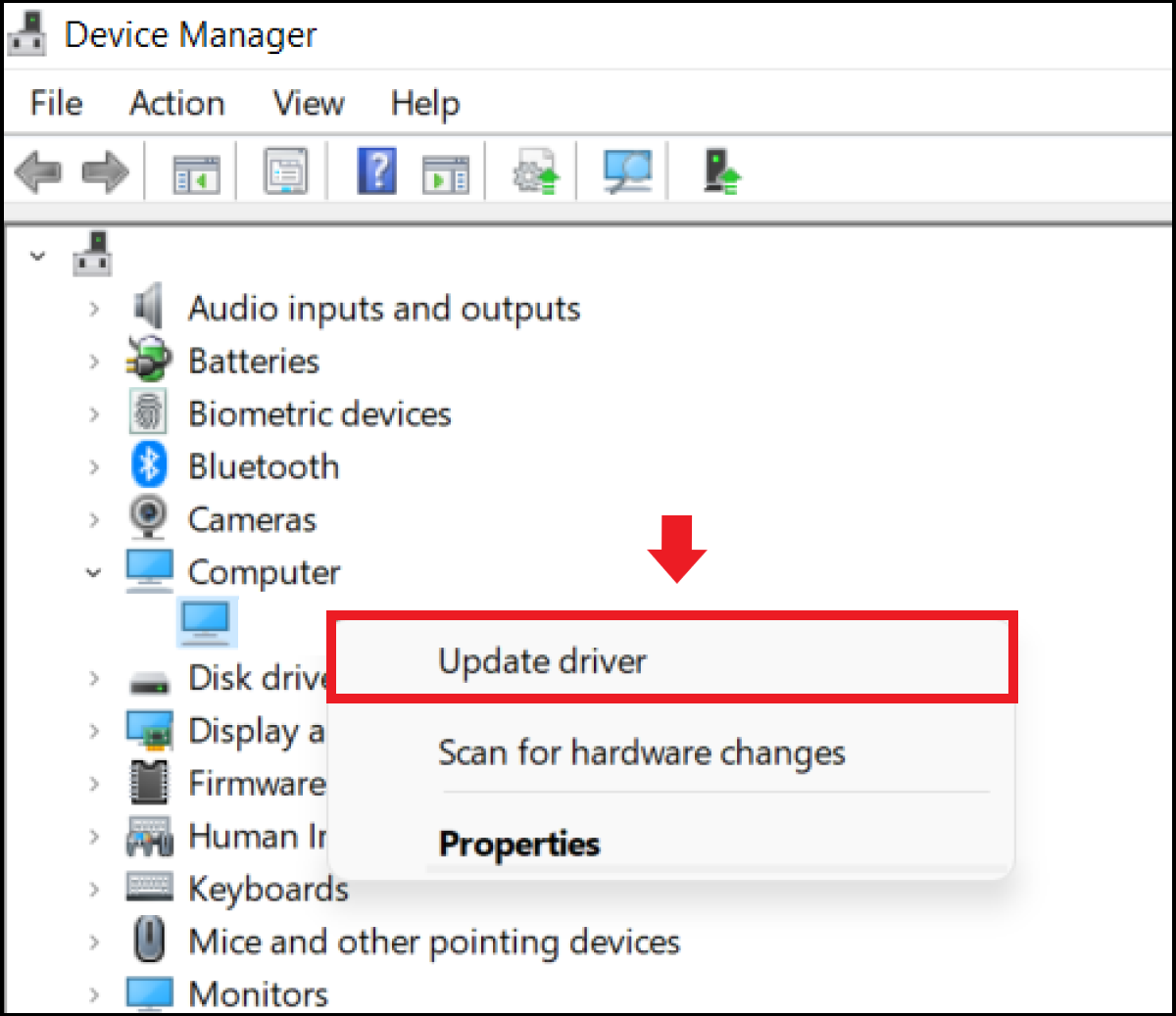
When a specific component is misbehaving, the Device Manager is your surgical tool. It allows you to target one specific piece of hardware without affecting the rest of the system.
- Right-click the Start button and select Device Manager.
- Expand the category for the hardware you wish to update (e.g., Display adapters).
- Right-click the device and select Update driver.
- Choose Search automatically for drivers. If Windows finds a newer version in its database, it will install it immediately.
Finding Manufacturer-Specific Drivers (NVIDIA, AMD, Intel)
For power users and professionals, Windows Update is often insufficient. It typically provides “stable” versions that may be several months old. To get the most out of your hardware, you should go directly to the source.
- GPUs: NVIDIA (GeForce Experience), AMD (Radeon Software), and Intel (Graphics Command Center) provide dedicated applications that notify you of “Game Ready” or “Studio” drivers the moment they are released.
- Motherboards: For chipset, audio, and LAN drivers, visiting the manufacturer’s support page (e.g., ASUS, MSI, Gigabyte) and entering your model number is the most reliable way to ensure you have the latest firmware and drivers.
Beyond Windows: Updating Drivers on macOS and Linux Systems
While Windows requires a hands-on approach, other operating systems handle driver management with different philosophies.
macOS: The Integrated Approach
Apple controls both the hardware and the software, which simplifies driver management significantly. In the macOS ecosystem, drivers (often called “Kernel Extensions” or “System Extensions”) are bundled with the OS.
- Update Method: To update drivers on a Mac, you simply update the OS. Go to System Settings > General > Software Update.
- Third-party Peripherals: For specialized hardware like high-end audio interfaces or RAID controllers, you may still need to download drivers from the manufacturer’s website, but these are increasingly rare as Apple pushes for “class-compliant” hardware that works out of the box.
Linux: Kernel Modules and Repository Management
In the Linux world, most drivers are open-source and integrated directly into the Linux Kernel.
- The Kernel: When you update your kernel (via
sudo apt upgradeor similar commands), you are essentially updating your drivers. - Proprietary Drivers: For certain hardware, like NVIDIA GPUs, Linux users must often choose between open-source “Nouveau” drivers and proprietary drivers. These are managed via the “Additional Drivers” tool in distributions like Ubuntu or through the command line using package managers.
Third-Party Driver Updaters: Are They Worth the Risk?
A common question in the tech community is whether third-party “Driver Updater” software is beneficial. Tools like IObit Driver Booster or Snappy Driver Installer promise to automate the entire process with one click.
The Benefits of Automation
For an IT professional managing fifty workstations, or a novice user who is intimidated by the Device Manager, these tools can save hours of work. They scan your hardware IDs and cross-reference them with a massive database of drivers, often finding updates that Windows Update misses.
Potential Security Risks and Bloatware
However, caution is advised. Many free driver updaters are bundled with “PUPs” (Potentially Unwanted Programs) or aggressive advertising. More concerning is the risk of “false positives”—the software might install a driver that is newer by version number but not actually designed for your specific OEM (Original Equipment Manufacturer) hardware, leading to system instability.
Best Practices for Choosing Safe Utilities
If you choose to use a third-party tool, stick to reputable, well-reviewed options. Always create a System Restore Point before allowing any third-party software to modify your drivers. This ensures that if a driver causes a crash, you can revert your system to its previous state within minutes.
Troubleshooting Common Driver Issues and Rollbacks
Sometimes, an update does more harm than good. A new driver might contain a regression or a bug that wasn’t caught during testing, leading to performance drops or system instability.
What to Do When an Update Breaks Your System
The most common symptom of a bad driver is a “laggy” interface or a specific piece of hardware suddenly ceasing to function. If this happens immediately after an update, the driver is the likely culprit.
The Power of System Restore and Driver Rollbacks
Windows includes a “fail-safe” mechanism for this exact scenario.
- Open Device Manager.
- Right-click the problematic device and select Properties.
- Navigate to the Driver tab.
- Click Roll Back Driver. This will uninstall the current version and reinstate the previous one.
If the system won’t boot at all, booting into Safe Mode will load a generic, minimal driver set, allowing you to uninstall the offending driver and restart the system normally.

Preventing Driver Conflicts in the Future
To maintain a healthy system, follow the “If it ain’t broke, don’t fix it” rule for non-critical components. While GPU and network drivers should always be current for security and performance, updating an obscure chipset driver or a keyboard driver is rarely necessary unless you are experiencing a specific problem. By taking a targeted, informed approach to driver management, you ensure that your technology serves you efficiently, rather than becoming a source of frustration.
In conclusion, maintaining your device drivers is a pillar of modern tech maintenance. By balancing the convenience of automatic updates with the precision of manual installations, you can maximize your hardware’s lifespan and protect your digital environment from the evolving threats of the modern era.
aViewFromTheCave is a participant in the Amazon Services LLC Associates Program, an affiliate advertising program designed to provide a means for sites to earn advertising fees by advertising and linking to Amazon.com. Amazon, the Amazon logo, AmazonSupply, and the AmazonSupply logo are trademarks of Amazon.com, Inc. or its affiliates. As an Amazon Associate we earn affiliate commissions from qualifying purchases.