
In the modern digital landscape, the phrase “What is my IP address?” is more than just a common search query; it is a fundamental question that touches upon the core mechanics of how the internet functions. Every time you stream a high-definition video, send an encrypted email, or join a cloud-based video conference, a complex system of routing and identification is working behind the scenes. At the heart of this system lies the Internet Protocol (IP) address—a unique numerical label assigned to every device connected to a computer network that uses the Internet Protocol for communication.
Understanding your IP address is essential for troubleshooting connectivity issues, ensuring digital privacy, and grasping how information travels across the globe in milliseconds. This guide explores the technical architecture of IP addresses, the distinction between various types of network identifiers, and the security implications of your digital footprint.
The Fundamental Anatomy of an IP Address
At its most basic level, an IP address serves two principal functions: host or network interface identification and location addressing. Just as a physical house requires a unique mailing address to receive letters, a digital device requires an IP address to receive data packets.
Defining the Internet Protocol
The Internet Protocol is a set of rules that govern how data is sent over the internet or a local network. Data is broken down into small chunks called “packets,” each of which contains the sender’s address and the recipient’s address. Without these labels, routers and switches would have no way of knowing where to direct the flow of information.
IPv4 vs. IPv6: The Evolution of Connectivity
There are currently two versions of IP addresses in active use: IPv4 and IPv6.
- IPv4 (Internet Protocol version 4): This is the veteran standard, first deployed in the early 1980s. It consists of four sets of numbers (octets) ranging from 0 to 255, separated by periods (e.g., 192.168.1.1). Because IPv4 uses a 32-bit addressing scheme, it is limited to approximately 4.3 billion unique addresses. As the number of internet-connected devices exploded with the advent of smartphones and the Internet of Things (IoT), the world effectively ran out of unallocated IPv4 addresses.
- IPv6 (Internet Protocol version 6): Developed to solve the exhaustion of IPv4, IPv6 uses a 128-bit addressing scheme. These addresses are expressed as eight groups of four hexadecimal digits, separated by colons (e.g., 2001:0db8:85a3:0000:0000:8a2e:0370:7334). The sheer scale of IPv6 is staggering, allowing for 340 undecillion unique addresses—enough to assign a unique IP to every atom on the surface of the Earth.
How IP Addresses Are Assigned
IP addresses are not permanently etched into your hardware. Instead, they are typically assigned by your Internet Service Provider (ISP) or your local network administrator. This process is usually automated via the Dynamic Host Configuration Protocol (DHCP), which “leases” an IP address to your device for a specific period. When you move to a different coffee shop or switch to a mobile data network, your IP address changes to reflect your new point of entry into the global network.
Local vs. Public IP Addresses: Knowing the Difference
One of the most common points of confusion for users is the existence of multiple IP addresses for a single device. In a typical home or office environment, your computer actually has two distinct identities: a local (private) IP and a public IP.
The Local Area Network (LAN) Identifier
Your local IP address is what your router uses to identify your device within your private network. When you have a laptop, a smartphone, and a smart TV all connected to the same Wi-Fi, the router assigns each one a unique internal address (often starting with 192.168.x.x or 10.x.x.x). These addresses are not visible to the outside world; they exist only to ensure that when you request a website on your laptop, the data doesn’t accidentally end up on your TV screen.
The Public Gateway to the World
Your public IP address is the “face” your entire network shows to the internet. It is assigned to your router by your ISP. Every device in your home shares this single public IP address when communicating with external websites or services. A technology called Network Address Translation (NAT) acts as a traffic controller, keeping track of which internal device made which external request, ensuring the returned data reaches the correct destination.
Static vs. Dynamic IPs
- Dynamic IP Addresses: Most residential users have dynamic IPs. These change periodically. ISPs use dynamic addresses because they are cost-effective and easy to manage through automation.
- Static IP Addresses: A static IP remains constant. These are typically used by businesses that host their own servers, websites, or email systems. Static IPs are also useful for remote access to office networks or for high-stakes online gaming where a stable, unchanging connection point is preferred.
How to Find Your IP Address Across Different Platforms
Locating your IP address is a straightforward task, though the steps vary depending on whether you are looking for your internal network ID or the address the rest of the world sees.
Finding Your Public IP via Web Tools
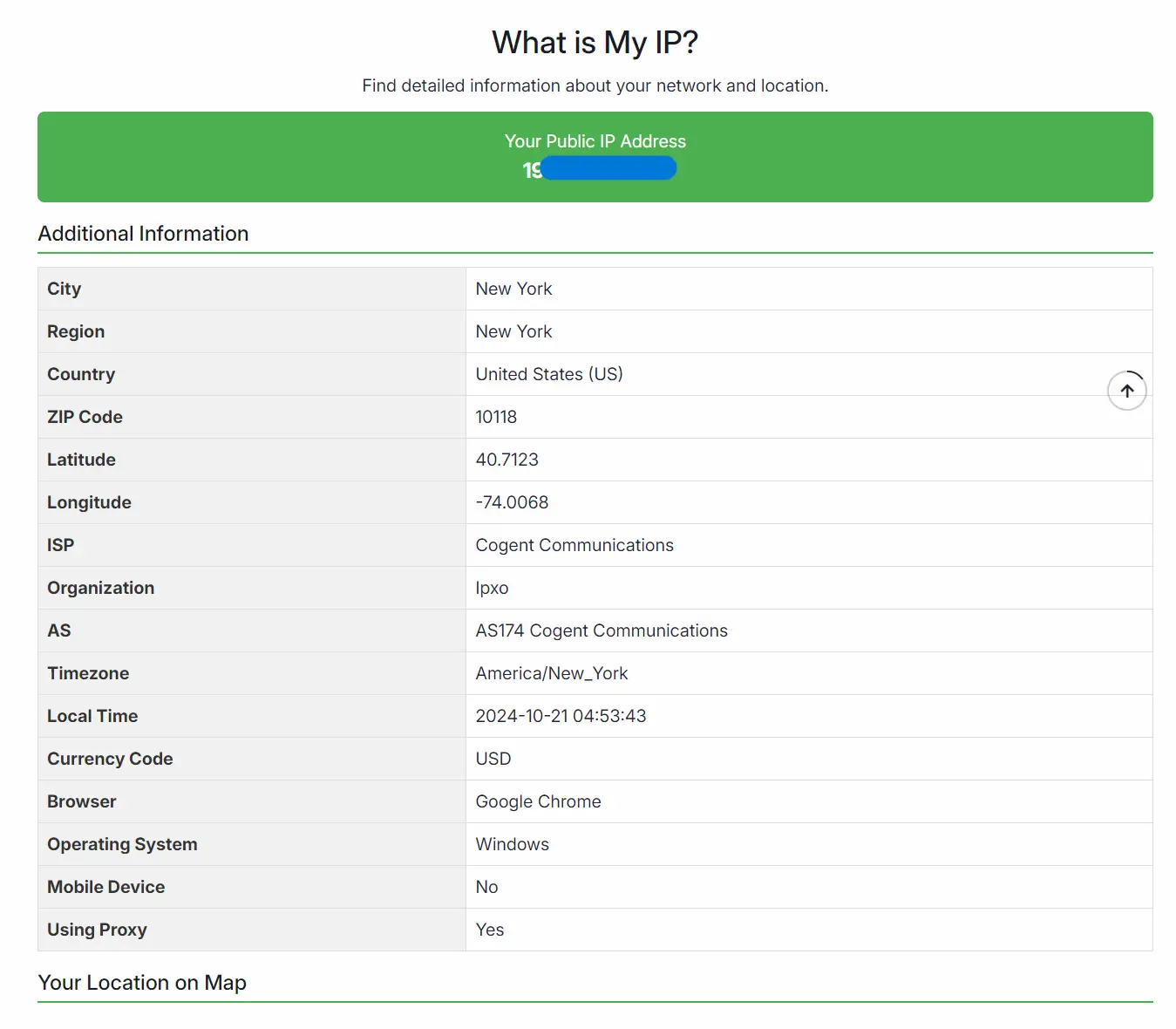
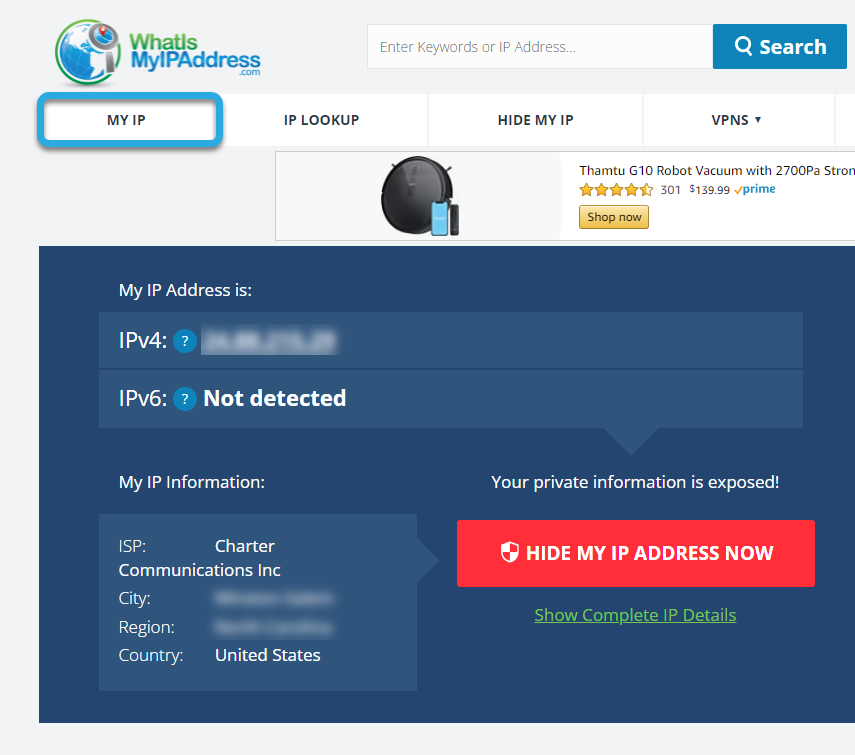
The simplest way to find your public IP address is to use an online search engine. By typing “What is my IP” into Google or DuckDuckGo, the search engine will display the public IPv4 or IPv6 address currently associated with your gateway. There are also dedicated websites that provide more granular data, such as your ISP name, your estimated geographic location, and whether your connection is passing through a proxy.
Locating Local IPs on Windows and macOS
To find the local IP address assigned to your specific machine, you must look at your system settings:
- On Windows: Open the Command Prompt (cmd), type
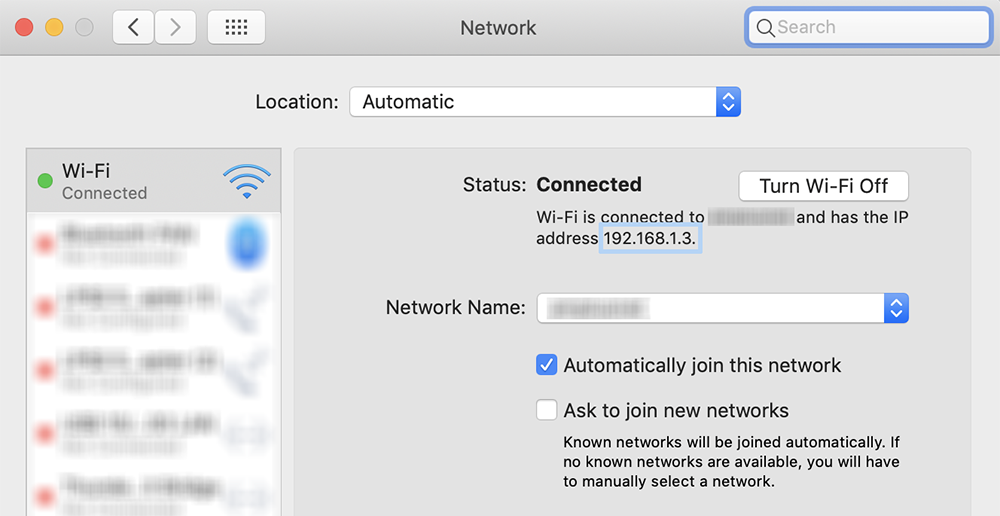
ipconfig, and press Enter. Look for the line labeled “IPv4 Address” under your active connection (Wi-Fi or Ethernet). - On macOS: Go to System Settings > Network. Select your active connection, and the IP address will typically be displayed in the status area or under the “Advanced” or “Details” tab. Alternatively, you can open the Terminal and type
ifconfig.
Checking Network Details on Mobile Devices
- iOS (iPhone/iPad): Go to Settings > Wi-Fi and tap the “i” icon next to the network you are connected to. Your IP address will be listed under the IPV4 ADDRESS section.
- Android: Go to Settings > About Phone (or About Device) > Status > IP Address. Note that on some versions of Android, this may be located under Settings > Network & Internet > Wi-Fi > Network Preferences.
Why Your IP Address Matters for Digital Security
While an IP address is a technical necessity, it is also a piece of metadata that can reveal significant information about your digital habits and physical location.
Geolocation and Tracking
Your public IP address is linked to a specific ISP and a general geographic region. While it usually doesn’t reveal your exact street address, it can pinpoint your city or postal code. Advertisers use this information for “geo-targeting,” ensuring that you see ads for local businesses rather than services halfway across the country. However, this also allows websites to track your visits and build a profile of your online activity over time.
Potential Security Risks: DDoS and Targeted Attacks
In the hands of a malicious actor, a known IP address can be a target. Distributed Denial of Service (DDoS) attacks involve flooding a specific IP address with massive amounts of junk traffic, effectively knocking the target offline. This is a common tactic in the world of competitive online gaming and corporate sabotage. Furthermore, if a device has unpatched security vulnerabilities, an attacker can use the IP address to attempt unauthorized entry into the network.
Shielding Your Identity with VPNs and Proxies
To enhance privacy and security, many users employ Virtual Private Networks (VPNs). A VPN encrypts your data and routes it through a server in a different location. As a result, the websites you visit see the IP address of the VPN server rather than your actual home IP. This not only hides your physical location but also prevents your ISP from monitoring your browsing history. Proxies operate similarly but often lack the robust encryption protocols found in premium VPN services.
The Future of Networking: Why the World Is Moving to IPv6
The transition from IPv4 to IPv6 is one of the most significant infrastructure upgrades in the history of the internet. While NAT and other workarounds have extended the life of IPv4, they add complexity and latency to network communications.
IPv6 was designed with the modern tech ecosystem in mind. Beyond just offering more addresses, it includes built-in security features like IPsec (Internet Protocol Security), which provides end-to-end encryption and authentication. It also streamlines packet processing by routers, making the internet more efficient as we move toward a future defined by billions of interconnected smart devices.
As we continue to integrate technology into every facet of our lives—from smart cities to wearable health monitors—the IP address will remain the invisible thread that connects our global digital society. Understanding what your IP address is and how it functions is the first step toward taking control of your digital identity and navigating the web with greater confidence and security.
aViewFromTheCave is a participant in the Amazon Services LLC Associates Program, an affiliate advertising program designed to provide a means for sites to earn advertising fees by advertising and linking to Amazon.com. Amazon, the Amazon logo, AmazonSupply, and the AmazonSupply logo are trademarks of Amazon.com, Inc. or its affiliates. As an Amazon Associate we earn affiliate commissions from qualifying purchases.